
Required shifts and posts
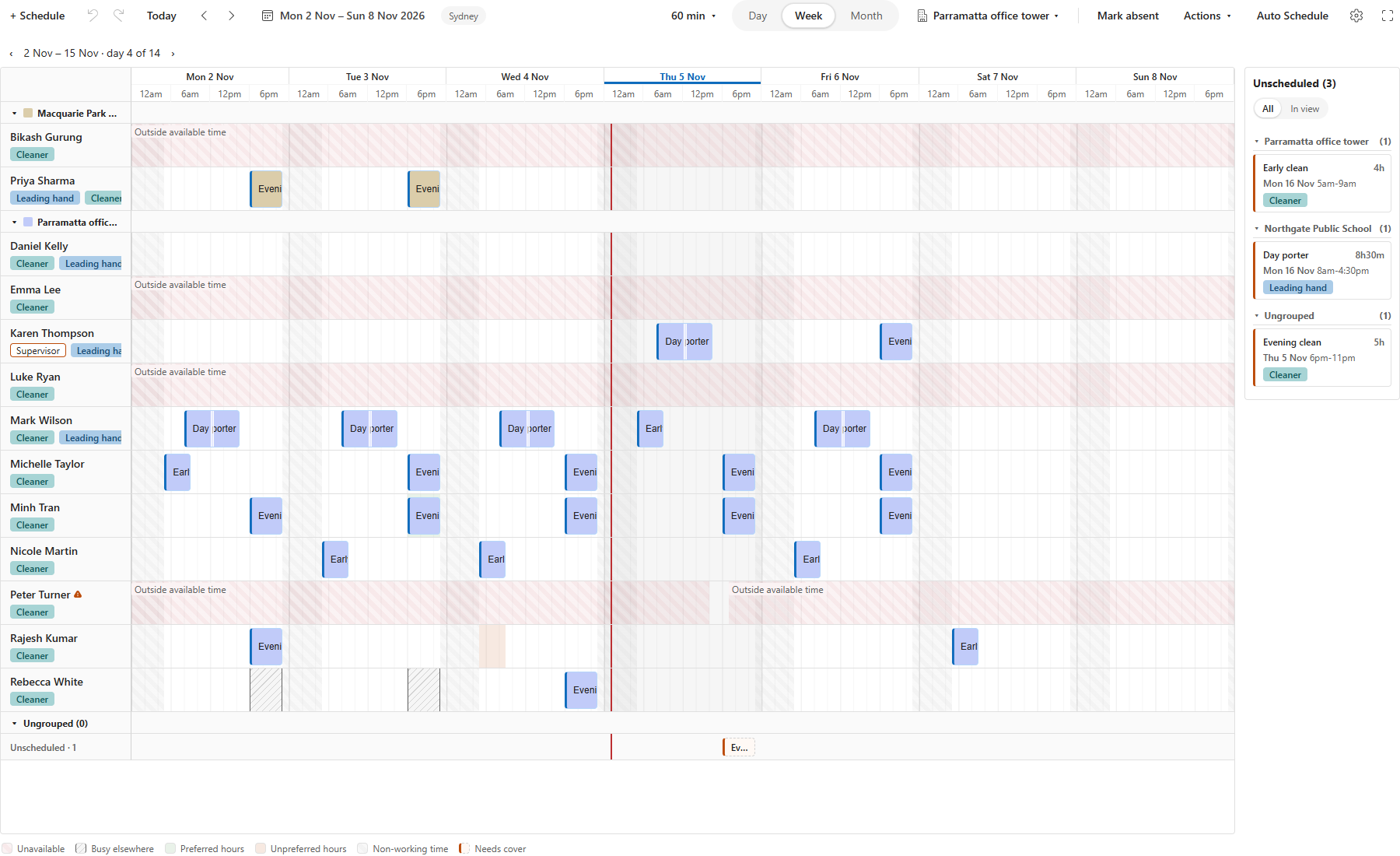
Set up your teams or areas as groups, each with the workers it needs at each time. Demand nobody can cover is saved as open shifts, so you see what still needs someone.
 Power Platform
 Power Apps
Turn required posts and shift patterns into a roster your team can review. Bring staffing, availability and working-time rules together in Power Apps.
Set up your teams or areas as groups, each with the workers it needs at each time. Demand nobody can cover is saved as open shifts, so you see what still needs someone.
Mark the skills a shift must or should have, such as a security license. Auto Schedule assigns only workers with every Must skill, and prefers workers with a Should skill. Leave and availability show in the same view.
Review hours and overtime as you build the roster. Apply the working-time rules configured for each agreement. Put Keep wages low first, or compare each strategy’s wages in Scenarios before you apply one.
When a client asks for a guard or cleaner by name, or asks you to keep one off their site, list them on the shift type as Preferred or Prohibited. Every shift made from it follows the list, and Auto Schedule never sends a Prohibited worker.
Each site keeps the public holidays of its own region.
Each site picks its region, such as a state, and Chrona fetches its public holidays. Add or remove a day by hand.
Set the most Sundays and public holidays each worker works in a period. Auto Schedule keeps to it at every site.
Hours over or under the guaranteed hours carry into the next pay period. Hours past your most over are recorded as a Payout entry.
Set up the client location’s teams, roles, shift types and staffing needs. Generate the shifts for the planning period.
Auto Schedule keeps workers in their teams and inside their availability. Check the proposed changes, remaining open shifts and hours before you apply them.
Publish the period when it is ready. In Workforce Mobile, staff see the roster, pick up open shifts and make shift or availability requests. With self-rostering, they pick their shifts before each roster, and Auto Schedule keeps the picks it can. When a post opens at short notice, Chrona offers it to the best-fit staff first, level by level, until the shift is filled or offers close.
Chrona Workforce Scheduler installs in your Dataverse environment. Agree your roles, shift patterns and working-time rules before you start.
Use a separate site schedule for each location. This workflow plans staff shifts; travel routes and transfers between client sites need a separate process.
Send approved hours to your payroll. Pick your system, match your codes, done.
The questions buyers ask first.
Anyone Auto Schedule schedules in the month, whether or not you apply or publish the result. Each worker counts once a month, however many shifts, schedulers or environments. Shifts you roster by hand do not count.
Start it in the Chrona Portal. For 14 days, Chrona Workforce Scheduler has no limit on workers and needs no card. Subscribe before it ends to keep Auto Schedule for more than five workers.
Yes. Each site picks its region, such as a German state, and Chrona fetches that region's public holidays. Add or remove days by hand. Public holidays count in the Sundays and public holidays worked rule. A public holiday on a working day credits that day's guaranteed hours to the worker's hours balance.
Power Pages, from Microsoft. Each worker who signs in counts once a month as an authenticated user of your site, however often they sign in. Microsoft sells this in monthly packs or pay-as-you-go through Azure. Workers with Power Apps Premium in your tenant are not counted when they sign in with their work account. Microsoft 365 plans, F1 and F3 included, do not include Power Pages.
No. Chrona supports its packages and its documentation. If your first roster is not ready in the trial, we set it up with you on a call, free. Consultancies and integrators implement; we do not sell implementation hours.
Download from the Chrona Portal and roster your first five workers free, in your own Power Apps.